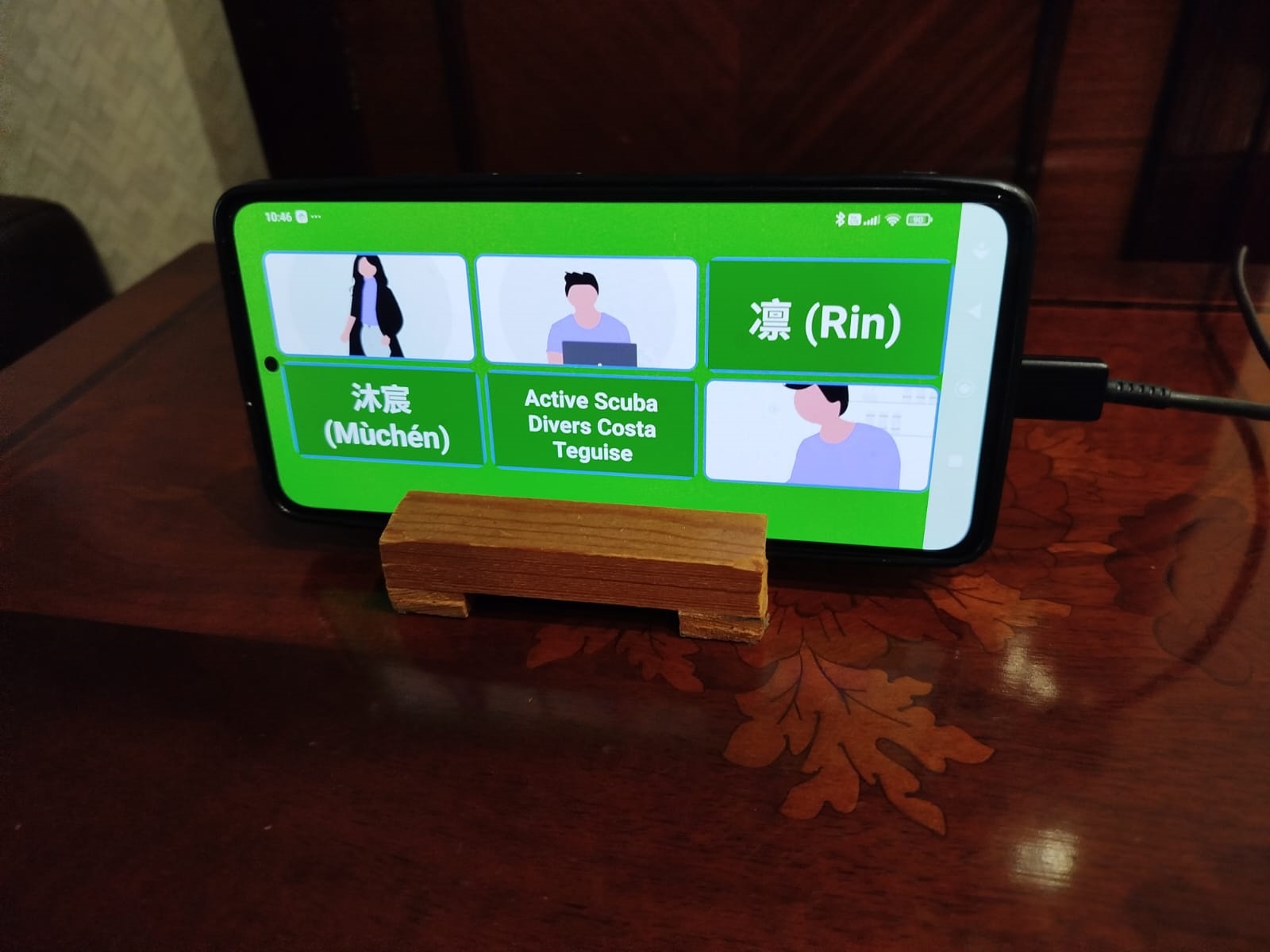
EasyCall turns any smartphone into an accessible device
Easy phone calls with large photos. Perfect for seniors and elderly people.
Compatible with Android 5.0+
EasyCall was born from a real and personal need. My mother-in-law, now 90 years old, has early-stage senile dementia that is affecting her fine motor skills. This prevents her from using a smartphone normally: touchscreens are too small for her, menus too complicated, and gestures too precise.
We tried special phones designed for elderly people, but even those couldn't adapt to her needs.
That's why I decided to develop EasyCall: an app specifically designed so that people with motor or cognitive difficulties can call their loved ones with a single touch. Now she's very happy because she has regained the autonomy to call her loved ones whenever she wants.
Although I developed the app with her in mind, I use it myself every day. Despite having no problem using a smartphone, EasyCall is faster, simpler and more effective for calling my regular contacts than searching for them in my address book or marking them as favorites.
One touch and I call. That simple.
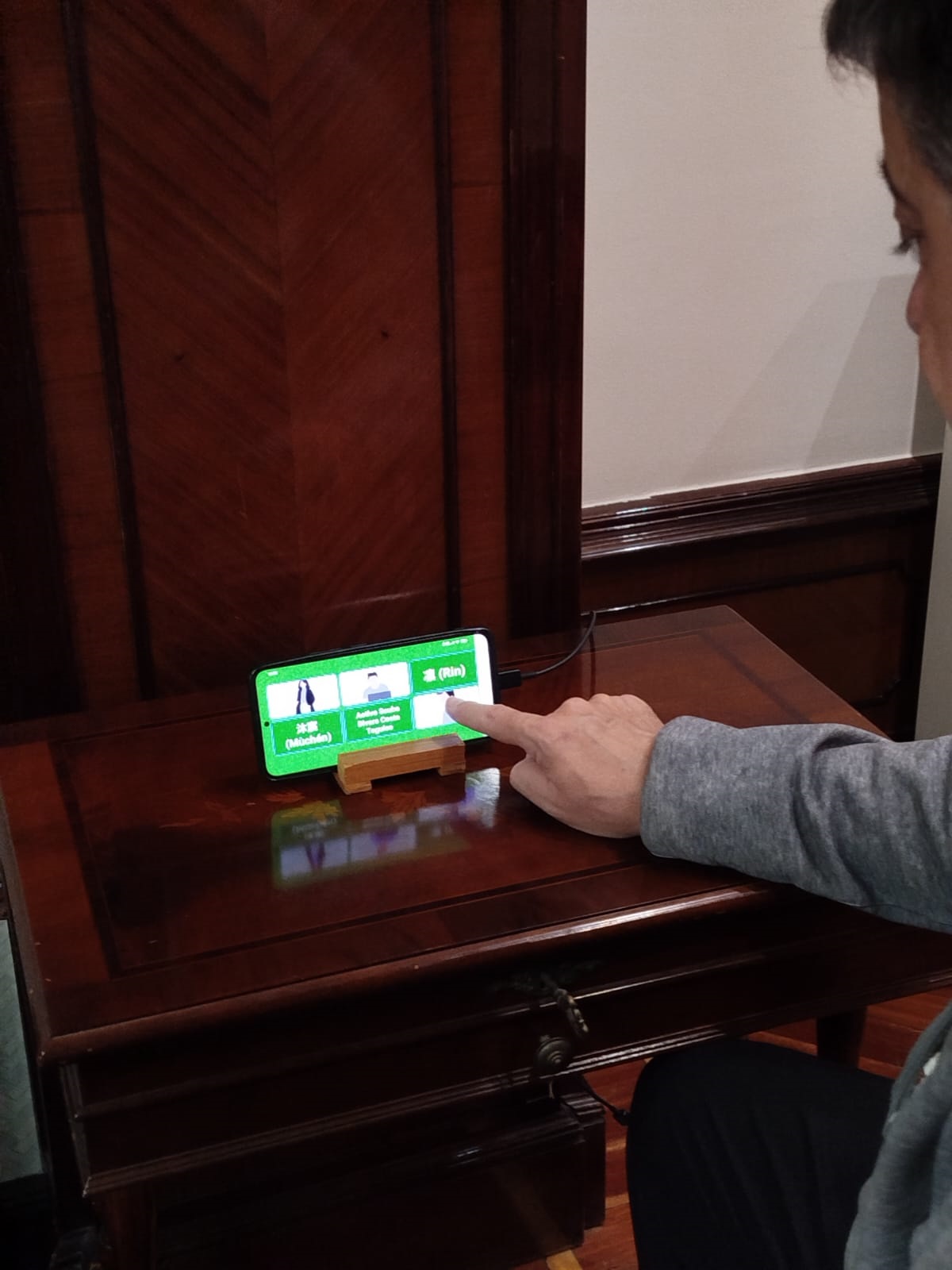
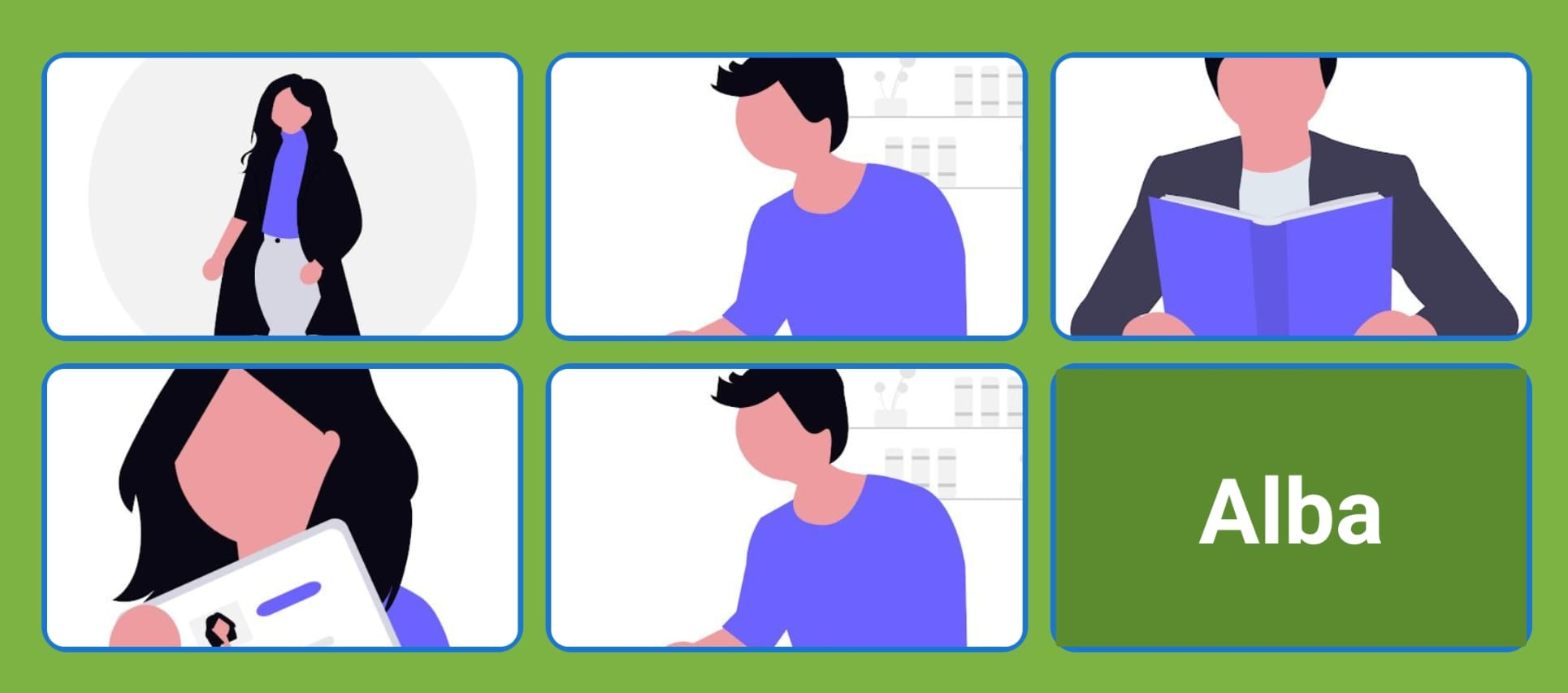
Contacts with large photos and easy-to-touch buttons. Perfect for people with visual or motor difficulties.
A family member or caregiver can easily configure contacts. The user will only see photos of their loved ones.
Hands-free mode activates automatically when calling, ideal for people with reduced mobility.
👵 Seniors and elderly people
🧠 People with dementia or Alzheimer's
🤲 People with motor difficulties
✨ Anyone looking for simplicity
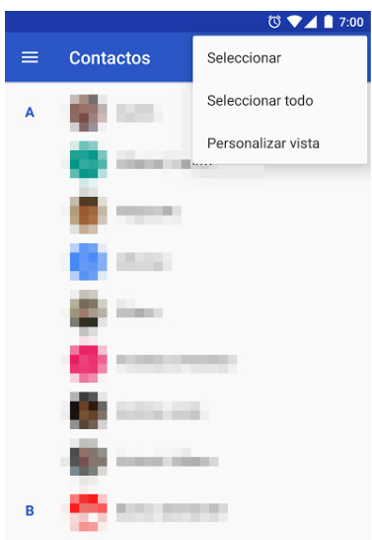
Using your phone's contacts app, save the contacts you want to select in EasyCall in your address book, and preferably save the photo you want to display for that contact. If the selected contact has no photo, the contact's name will be displayed on the call button. If a contact has multiple phone numbers, EasyCall will use the first phone number saved in the contact.
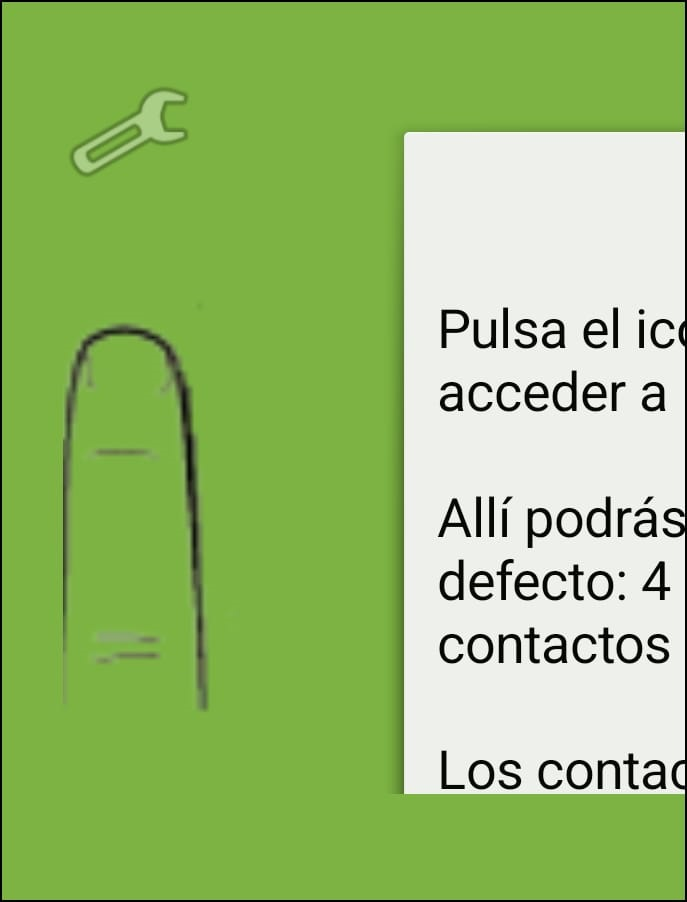
Open EasyCall and tap the wrench icon 🔧
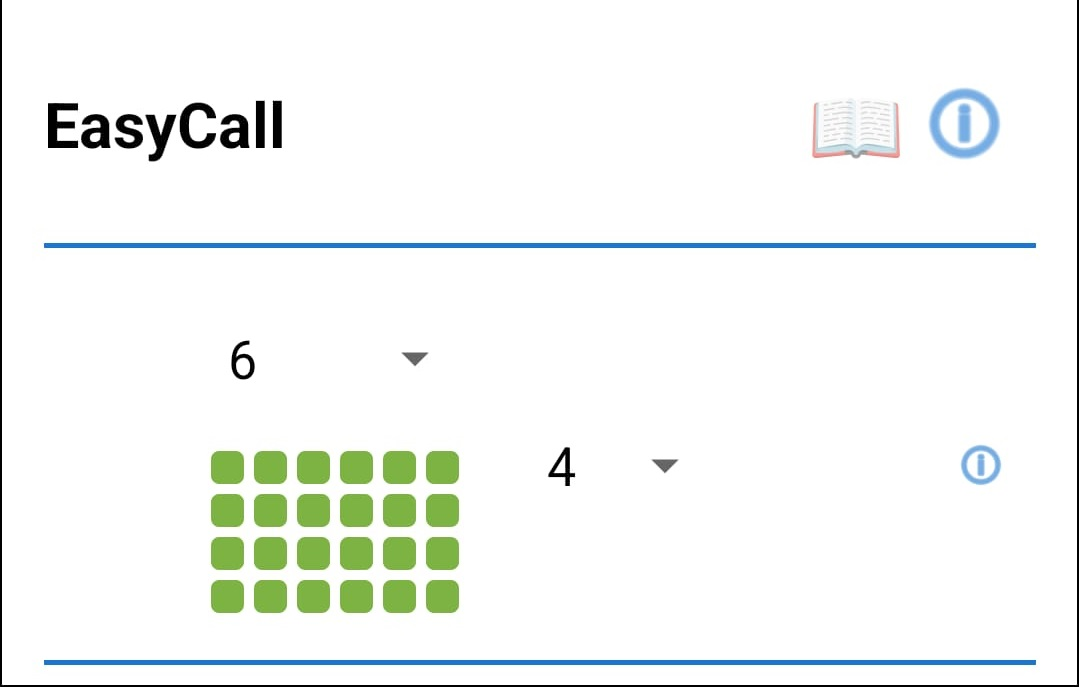
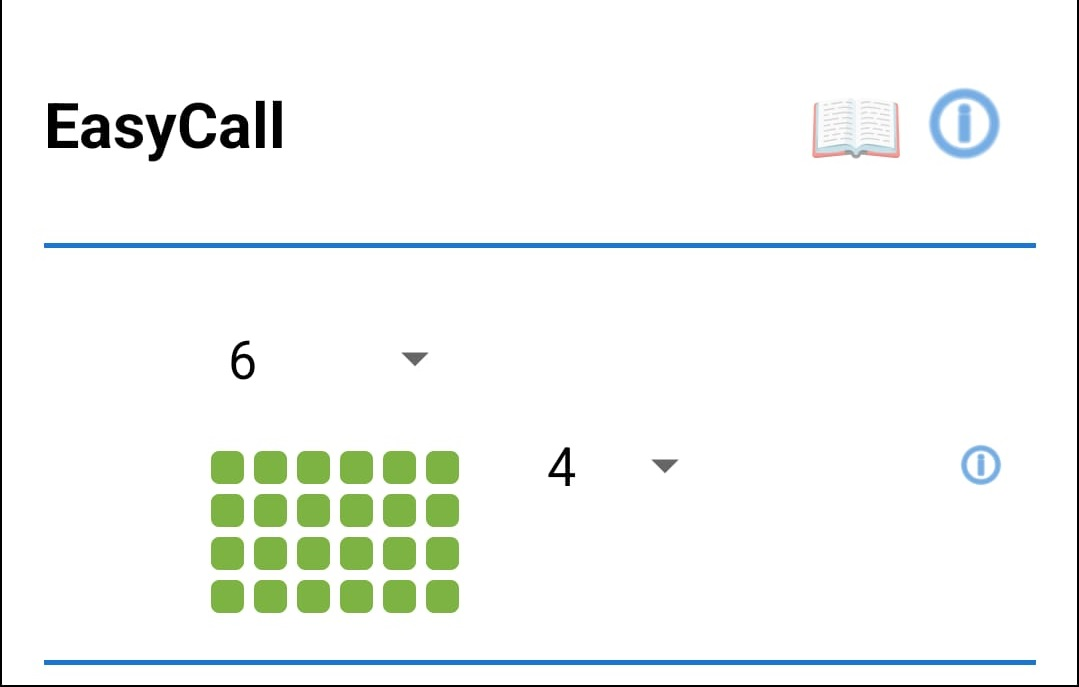
Select the number of photos horizontally (2-8) and vertically (1-4). Adapt the display to the user's needs. The arrangement of photos on the screen will adapt to the number of selected contacts, but at most, each screen will display the number of photos horizontally and vertically that has been selected.
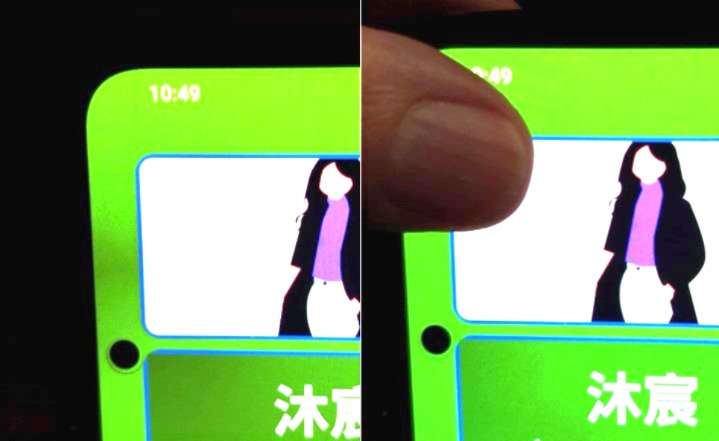
On this screen you can also enable or disable the display of the configuration icon (the wrench). By default it is enabled and displayed in the upper left corner of the main screen. If you disable it, the icon will disappear but the functionality will remain in the same place: to access the configuration, simply long-press for more than two seconds in the same area that is initially displayed (sometimes the first photo overlaps that area and the press must include the upper left corner of the photo). This option is especially useful to prevent users with cognitive difficulties from accidentally accessing the configuration and leaving the main screen.
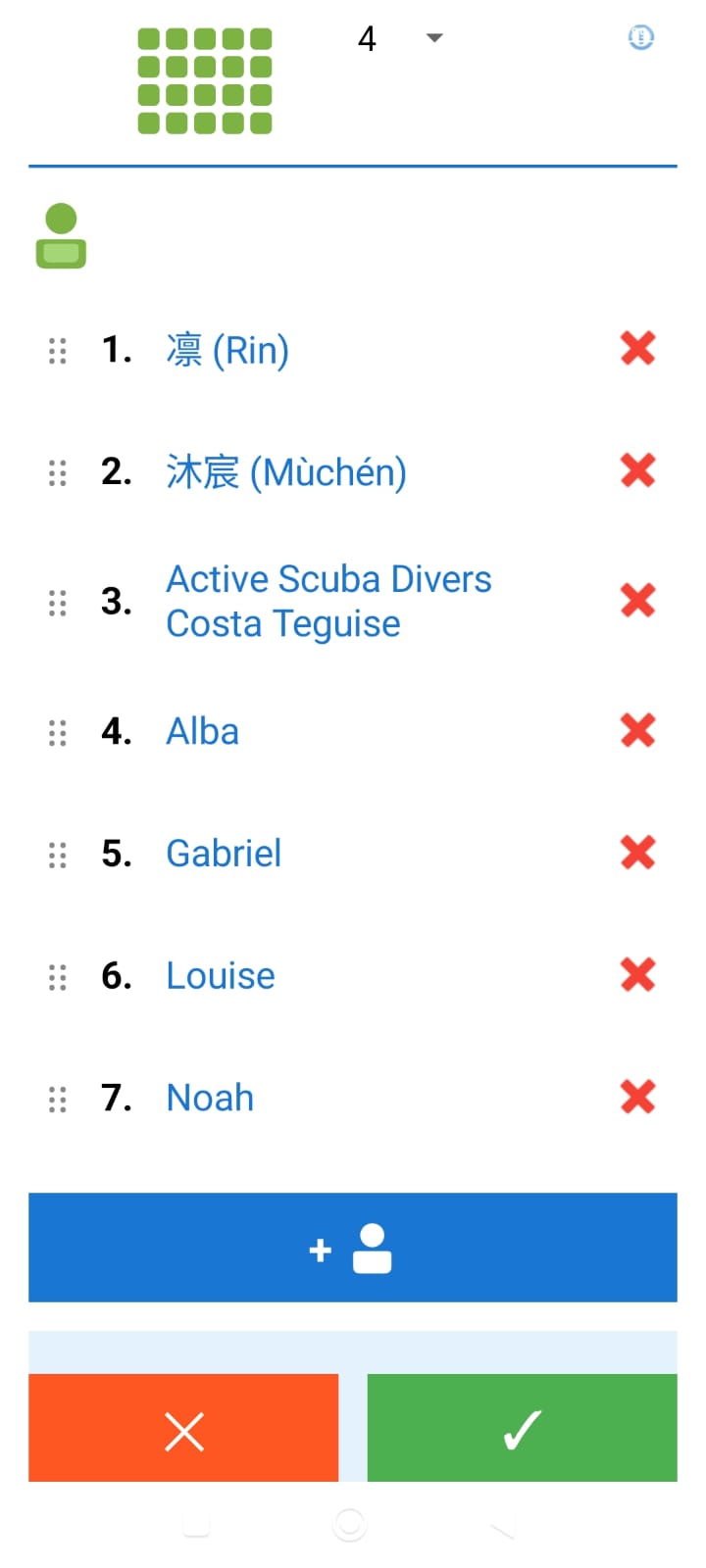
Tap "Add contact" and select contacts from your address book. EasyCall will use the contact's photo and their first phone number. By tapping on the contact's name you can select another contact for that position. To the left of the contact's position number there is an icon that when held down allows you to move that contact to another position in the list using drag&drop. When finished configuring, save the configuration, and you will return to the main EasyCall page.
EasyCall can be set as the phone's launcher (home app). Additionally, the screen stays always on while the app is open.
This allows you to leave the phone permanently plugged in on a table, with the screen active and ready to call at any moment with a single touch, just like a landline phone.
Once some contacts are configured, the configuration access icon, a wrench, will appear in the upper left corner of the screen. But in the configuration screen you can disable the display of this icon. In reality the configuration access functionality remains in the same place but is not visible and to access it you must long-press for more than two seconds in the same area that is initially displayed (sometimes the first photo overlaps the configuration access area and the press must include the upper left corner of the photo).
On some phone models, for the hands-free functionality to activate automatically it will be necessary to allow Restricted Settings for the EasyCall application. It is configured in Settings/Applications/EasyCall, but this may vary depending on each smartphone model.